Back
Image Filter!
100%
Tips on using the image filter
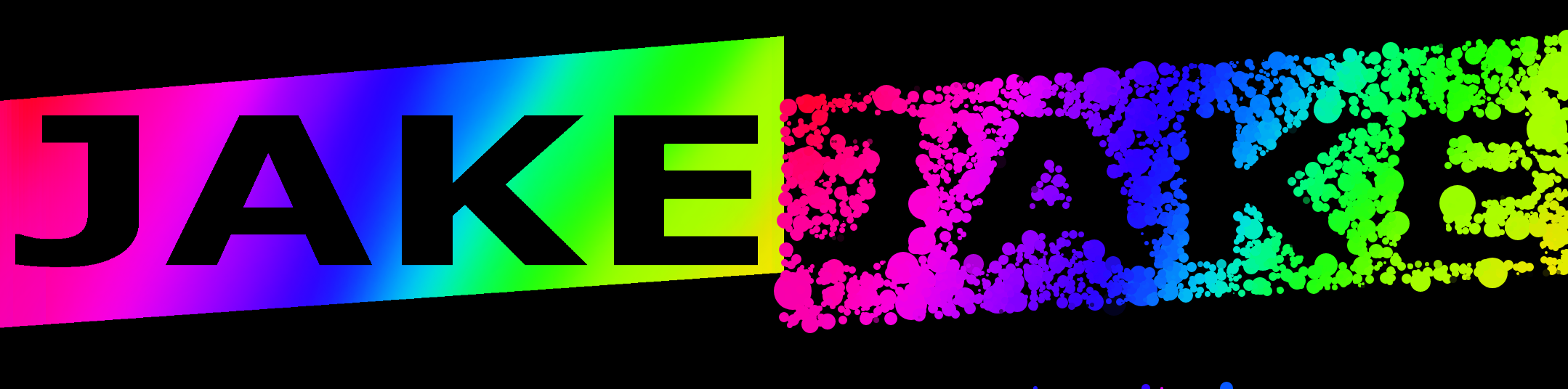
This program uses the html canvas element to render but not display the final image, meaning that if you right click the image(html img element) and 'save as' then you will not get your image in full quality. Although the produced image is shrunk to fit in my webpage(yes im a narcisist) if you click the 'save result' link the underlying javascript will send you a full quality image straight from the canvas element itself.
To understand the meaning of the text field options you must first understand how this program produces a finalized image. First your image is turned into r,g,b,a data and put in a buffer(really big array), then over time 'bubbles seeds' are slowly placed onto the image, these bubbles grow until they hit another bubble.
- The 'Number of Inputs' field determines how many frames the 'simulation' lasts.
- The 'Bubbles per input' field determines how many new 'bubble seeds' get added every frame.
- The 'Color mode' field is pretty self explanitory, type in the words written below it EXACTLY the way they are, otherwize it will default to 'full colour'.
- The 'minimum brightness' field determines how bright a pixel has to be in order for a 'bubble seed' to be placed on it.
If you want to see these processes in action click the 'Play Animations' checkbox. Warning, the image will load MUCH slower if animations are playing.